Shielding Your Home on Google Maps: A Step-by-Step Guide
Access Google Maps on Your Computer: While this function can be accessed through a mobile browser, it’s clunky. The desktop version offers a smoother experience.
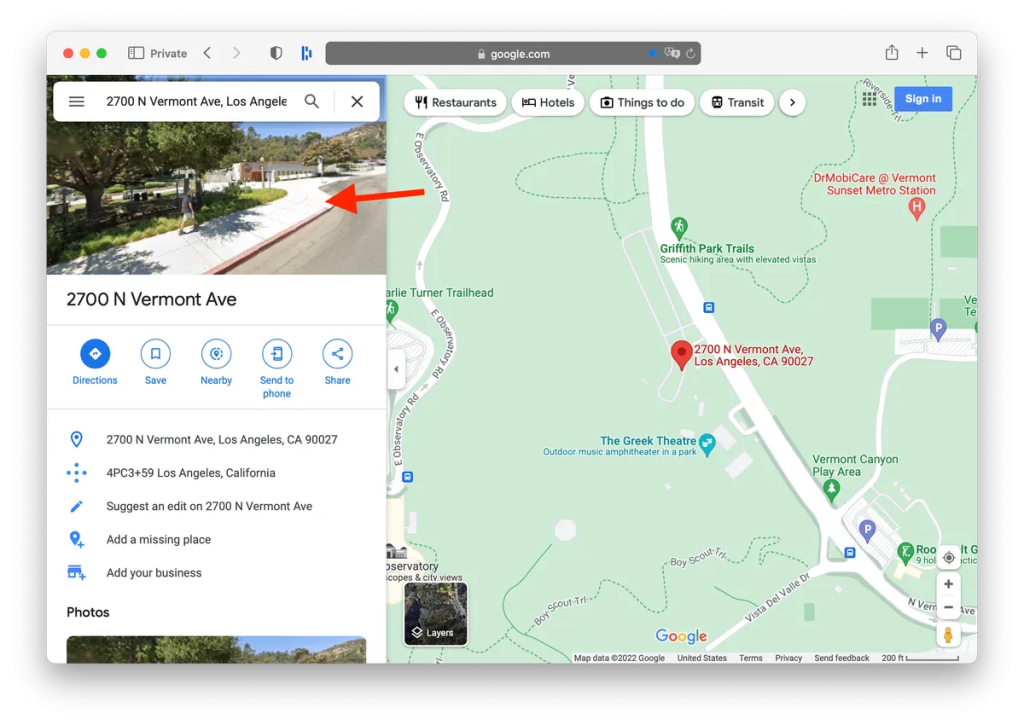
Locate Your Address: Visit maps.google.com and type your address into the search bar. Click on the photo of your property that appears.
Navigate to Street View: The interface will now display the Street View of your chosen address. Locate the ‘Report a Problem’ link on the bottom-right corner; it might be small, but it’s there.
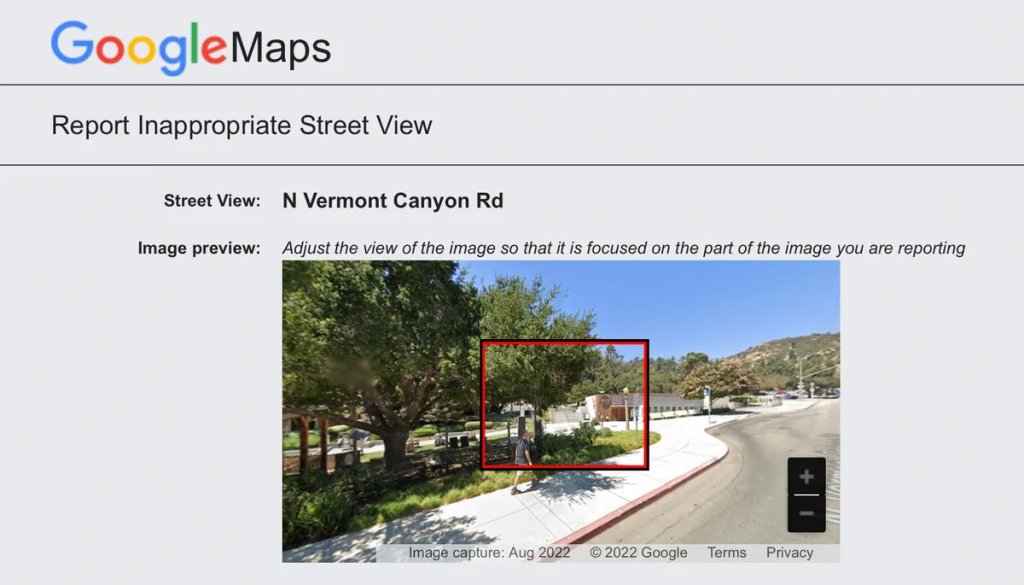
Choose Your Privacy Parameters: A red and black box will appear on the image. Adjust its dimensions to encompass the areas you wish to blur. Using the available tools, zoom in, move around and get the framing just right.
Specify the Blurring: You’ll be presented with options like:
A face.
Your home.
Your car/license plate.
A different object.
Provide additional context if the scene has multiple objects.
Finalize Your Request: Once you’ve made your selection, keep in mind that this action is irreversible – once blurred, always blurred. Provide your email address (mandatory), verify the captcha (if prompted), and hit ‘Submit’.
After submission, Google will send an acknowledgment email. They might reach out later for more details or inform you about the outcome of your request. However, they don’t specify a timeline for this, so staying patient and vigilant for updates is key.
Street View is a testament to our technological progress, but it’s always essential to stay informed about the potential implications for our privacy. With the above steps, you can enjoy the benefits of Google Maps while safeguarding your personal space.