Your system launches a number of applications during startup each time it powers up. Many applications, including antivirus software, use this capability, so you may wish to have it available the instant you log on to your computer. However, because they end up consuming too much system resources, many apps are not required for your smartphone to run when it first turns on. Many software, especially freeware ones, alter your system settings and include pointless startup programs. While a result, your boot time will take longer, and your performance may suffer significantly as these programs continue to run in the background. Here’s how to disable unnecessary starting programs so that your Windows 10 computer runs more quickly.
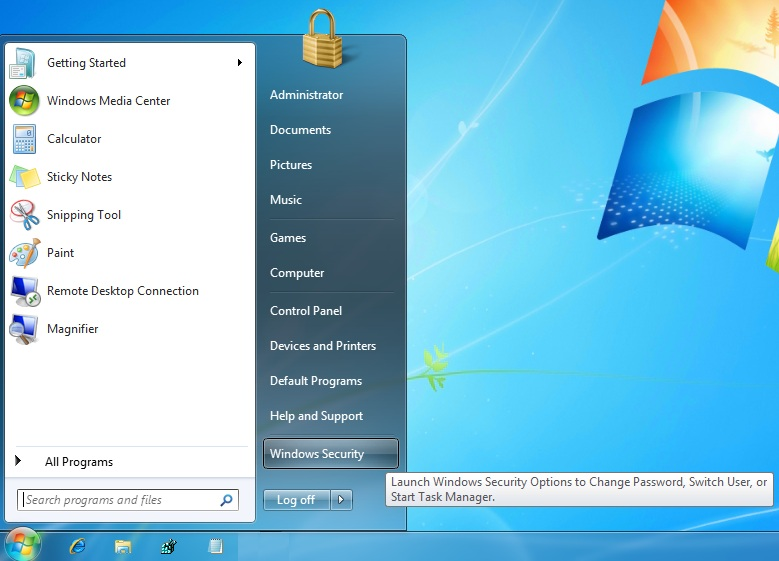
Open Task Manager using one of the following ways:
Right-click on any space in your taskbar. This will open up a context menu. Here, select Task Manager.
Alternatively, press the Ctrl, Alt, and Esc keys simultaneously on your keyboard.
If your Task Manager launched in the compact view, click on the More details option seen in the bottom left of the window. This will expand the window and show you the necessary taps to access startup applications.
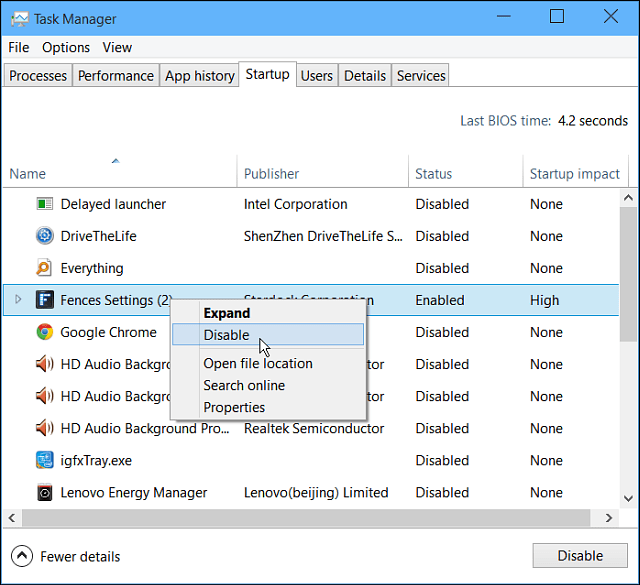
Switch to the Startup tab using the menu at the top of the Task Manager window. Here, you can see all of the applications that start with your computer at launch.
You can check the Start-up impact column to determine which applications have a high impact measurement on your computer’s system performance.
Note: Ensure that the application you’re trying to disable doesn’t have Microsoft Corporation stated in the Publisher column. These applications usually don’t impact your system’s performance and might be required for Windows 10 to run as intended.
Select an application you want to disable, then click on the Disable button in the bottom right of the window. Its status should change to Disabled.
Repeat this process for every app you don’t need at startup, then restart your computer.
Your computer should launch without any impact-heavy or unnecessary apps automatically launching.
This gives you the ability to test your boot time and the performance of your device as well.